
Requirements
Although you’re more than welcome to just read this post for general knowledge, check out my recommendations for what you need to have, in order to be able to fully use the provided information.
A wall mounted Home Assistant tablet is much nicer when it has a simple physical control next to it. Touching the screen works, but a small rotary knob near the entrance feels more natural when I only want to move between dashboard tabs.
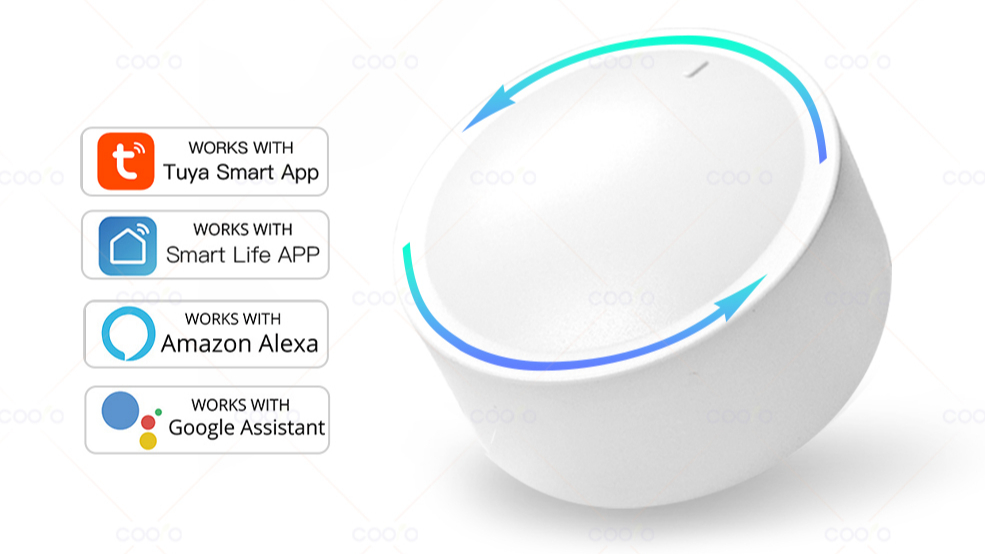
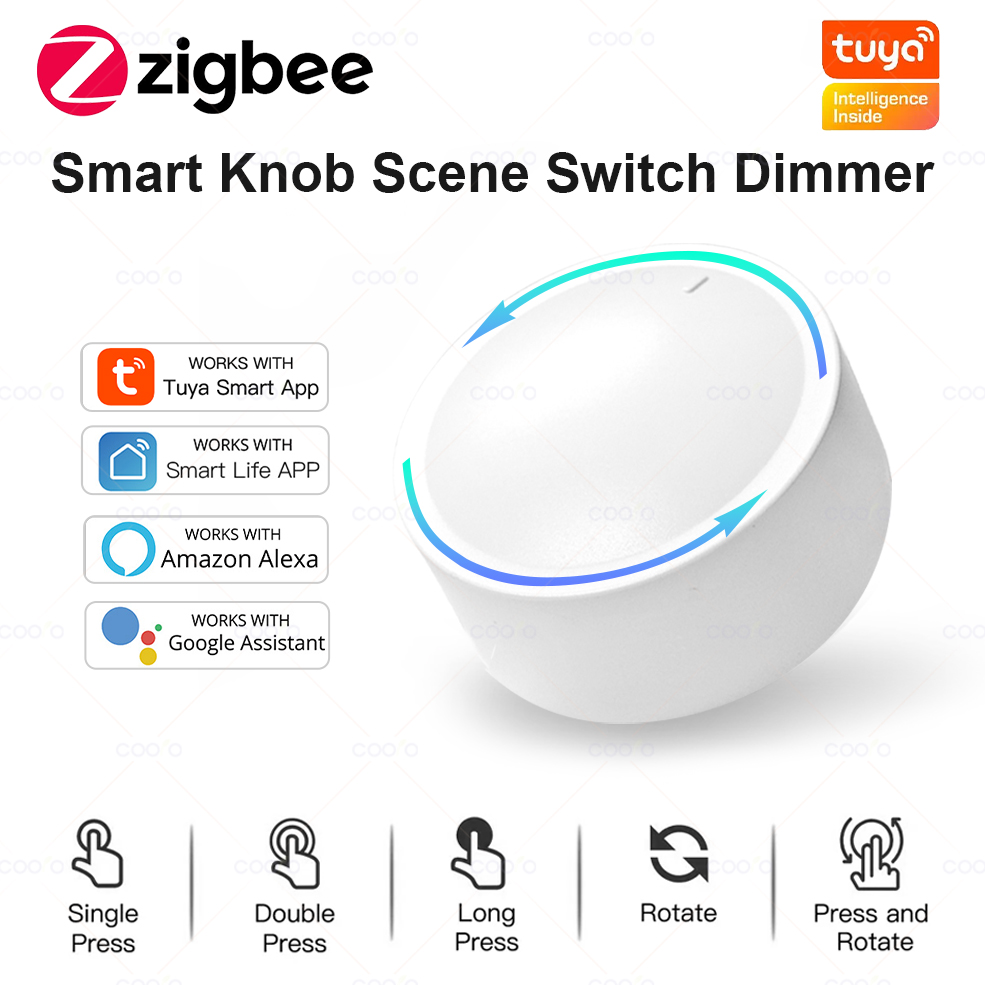
For this setup I am using a Zigbee rotary knob scene switch. Rotating it right moves the tablet to the next Lovelace tab, rotating it left moves to the previous tab, and the dashboard shows a short overlay so it is obvious which tab was selected.
The clean version of this project is now a Home Assistant custom integration called Knob Swipe Navigation. The integration handles the ZHA event listener, Home Assistant entities, browser frontend module, tab overlay, cooldown, wrapping, and optional browser targeting from the normal Home Assistant UI.
What the Integration Does
Knob Swipe Navigation maps one ZHA rotary knob to one Lovelace dashboard path. When the selected knob emits a rotation event, the integration normalizes it to next or previous, sends it to subscribed dashboard browsers, and the frontend module moves the visible dashboard to the next or previous tab.
- Rotate right: move to the next visible Lovelace tab.
- Rotate left: move to the previous visible Lovelace tab.
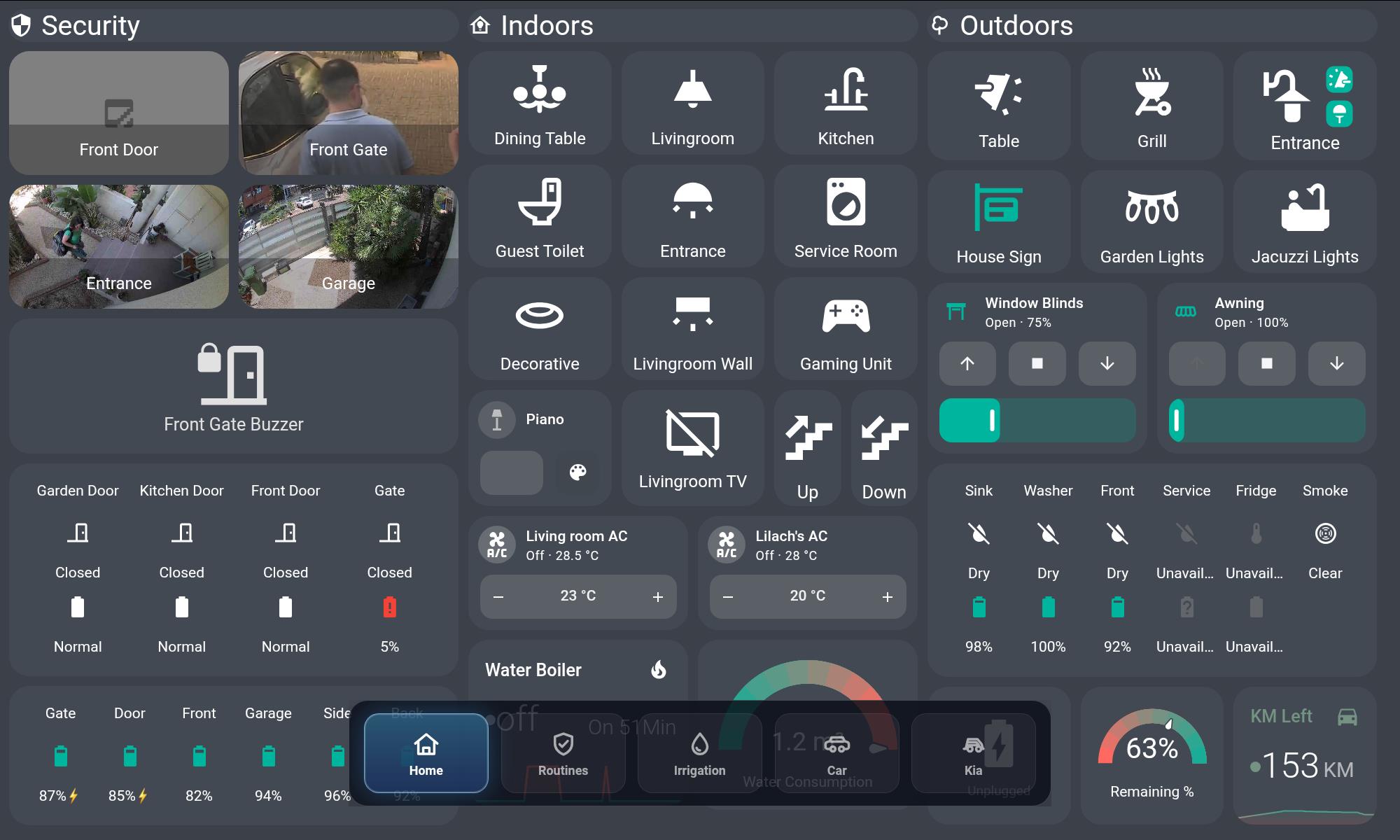
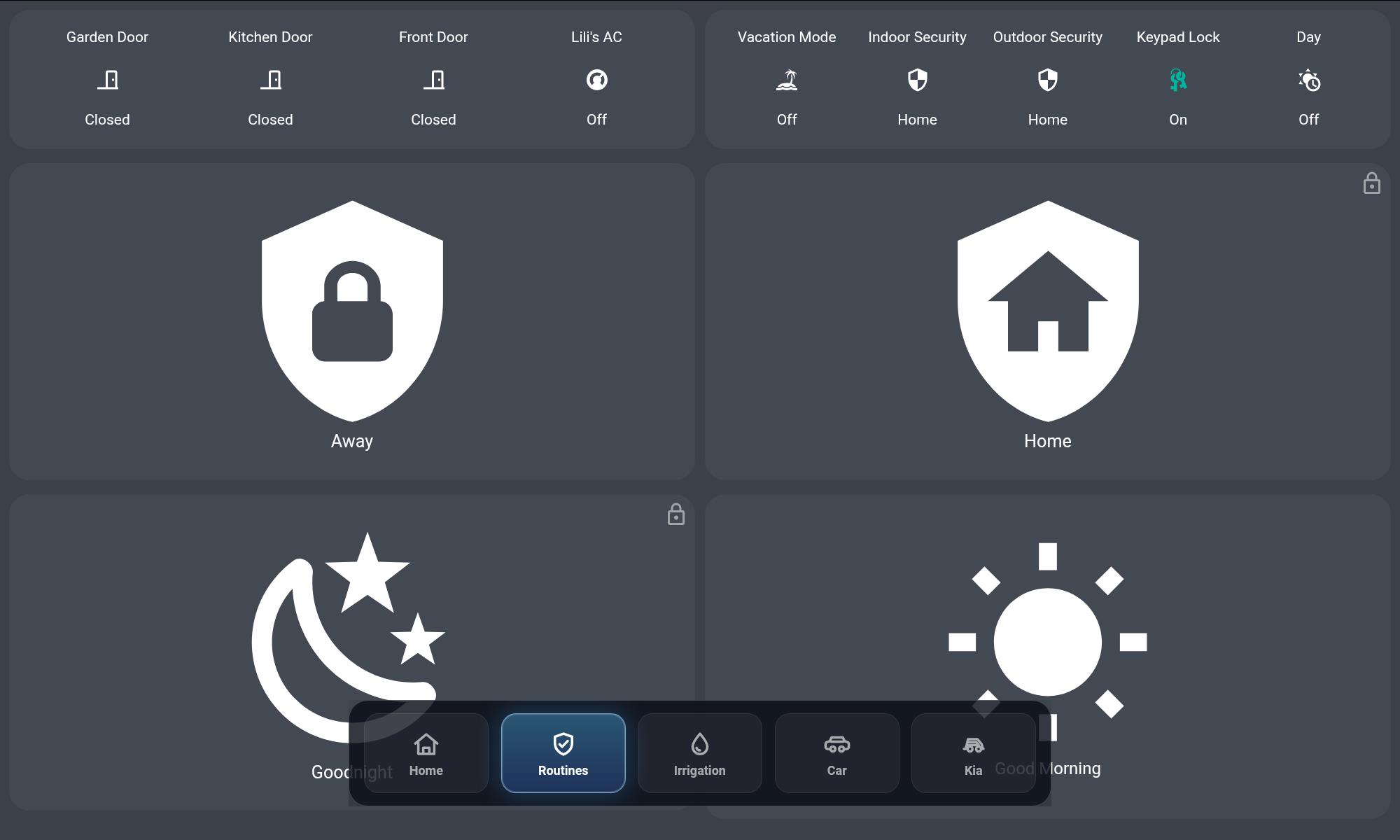
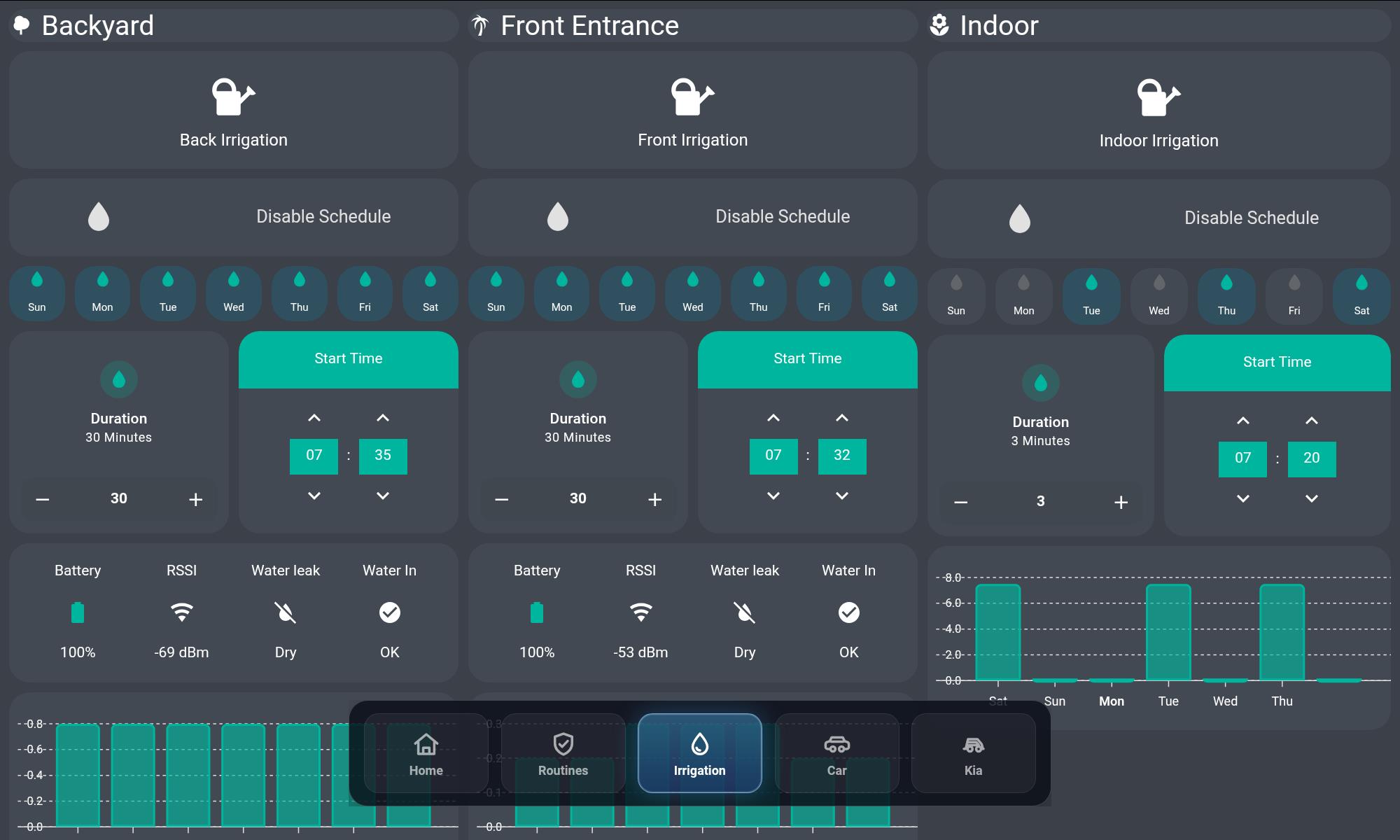
- Show a bottom overlay with the real dashboard tab names and icons.
- Skip hidden views and subviews.
- Optionally wrap from the last tab to the first, and from the first tab to the last.
- Optionally restrict navigation to browser URLs containing a query parameter such as
?kiosk.
Supported Knob Event Shape
The current integration version supports ZHA rotary knobs that fire zha_event with command: rotate_type. The value can come from params.rotate_type or from the first item in args.
rotate_type: 0means next tab.rotate_type: 1means previous tab.- Press, double-press, hold, Zigbee2MQTT, deCONZ, MQTT, and Bluetooth inputs are not handled by this integration version.
Installation with HACS
Until the repository is accepted as a default HACS repository, add it as a custom HACS integration repository.
- Open HACS.
- Open the three-dot menu.
- Choose Custom repositories.
- Add
https://github.com/moryoav/ha-knob-navigation. - Set the category to Integration.
- Install Knob Swipe Navigation.
- Restart Home Assistant.
Manual Installation
If you are not using HACS, copy the integration folder into Home Assistant manually.
config/custom_components/knob_swipe_navigation/
The folder should contain the integration Python files, translations, brand assets, and the frontend module under www/knob-swipe-navigation.js. Restart Home Assistant after copying the files.
Adding the Integration
After installation and restart, add the integration from the Home Assistant UI. There is no dashboard YAML, no shell command, no Python helper, and no Fully Kiosk Remote Admin setup needed.
- Go to Settings -> Devices & services -> Add integration.
- Search for Knob Swipe Navigation.
- Select the ZHA rotary knob device.
- Enter the dashboard path to control, for example
dashboard-homeorlovelace. - Choose whether the overlay is enabled.
- Choose the overlay timeout, rotation cooldown, and wrap behavior.
- Optionally enter a required URL query parameter such as
kiosk. - Finish setup.
Dashboard Path
The dashboard path is the first URL segment of the dashboard you want the knob to control. You do not enter the full tab URL.
/lovelace/home                    -> lovelace
/dashboard-home/default_view?kiosk -> dashboard-home
http://homeassistant.local:8123/kitchen/0 -> kitchen
The frontend module reads the actual Lovelace views from the loaded dashboard. That means tab names, paths, and icons come from the dashboard itself. If you rename tabs or change icons, reload the tablet browser so the module reads the latest dashboard config.
Browser Targeting
If you have the same dashboard open in several browsers, you probably do not want every browser to react to the knob. The integration can require a query parameter before a browser responds.
For example, set Required URL query parameter to kiosk, then open the wall tablet with this URL:
/dashboard-home/default_view?kiosk
Both ?kiosk and ?kiosk=1 match. This is a targeting guard, not a security feature. Any browser opened with the same query parameter can react.
Entities Created
Each configured knob gets its own service device and a small set of control and diagnostic entities. The exact entity IDs can vary if you rename devices or configure multiple knobs, so use the entity registry values from your system.
switch.navigation_enabled: pause or resume knob navigation.switch.overlay_enabled: show or hide the tab overlay.switch.wrap_tabs: allow first-to-last and last-to-first navigation.number.overlay_timeout: overlay display time in milliseconds.number.cooldown: cooldown between accepted rotations in milliseconds.event.rotation: emitsnextorpreviouswhen the selected knob rotates.sensor.last_rotation: last accepted rotation direction.sensor.last_navigation_result: last result reported by the browser frontend.
How It Works
The backend listens only to the selected ZHA device for each config entry. When the knob rotates, it forwards a normalized rotation event through an integration-owned WebSocket subscription. The frontend module is loaded into Home Assistant, subscribes to those events, checks whether the current browser is on the configured dashboard path, checks optional query targeting, then moves the dashboard tab.
ZHA rotate_type event
  -> Knob Swipe Navigation config entry
  -> normalized next/previous rotation
  -> Home Assistant WebSocket subscription
  -> frontend module in the dashboard browser
  -> overlay appears
  -> Lovelace tab changes
  -> browser reports navigation result back to Home Assistant
The visual behavior is the same idea as before: the overlay appears immediately, waits briefly, and then the dashboard moves. The difference is that the integration owns the setup and configuration instead of relying on a collection of local helper files.
The Overlay
The overlay uses the dashboard's real tab metadata, so it can show the tab titles and icons from your Lovelace config. It is rendered by the frontend module directly inside the browser and sits above the dashboard at the bottom of the screen.
Testing
After setup, open the configured dashboard in the browser or wall tablet and rotate the knob. Right should move forward, left should move backward, and the overlay should show the target tab if overlay display is enabled.
You can also simulate a rotation from Developer Tools -> Events by firing zha_event:
Use rotate_type: 1 to test previous-tab navigation.
Troubleshooting
- If the integration does not appear, confirm the folder is
config/custom_components/knob_swipe_navigationand restart Home Assistant. - If rotation does nothing, confirm
switch.navigation_enabledis on. - Confirm the selected device is the actual ZHA knob and that it emits
command: rotate_type. - Confirm the browser is showing the configured dashboard path.
- If using URL query targeting, confirm the browser URL includes the required query parameter.
- Check
event.rotation,sensor.last_rotation, andsensor.last_navigation_result. - If tab labels or icons look wrong, reload the dashboard browser.
The integration also provides diagnostics from the integration entry in Settings -> Devices & services. The diagnostics redact the raw configured Home Assistant device ID and include the selected device metadata, settings, frontend module URL, and entity IDs.
Current Limitations
- ZHA only.
- Rotation only.
- Press actions are ignored.
- Each config entry maps one knob to one dashboard path.
- URL query targeting identifies browser URLs, not a physical tablet.
- Fully Kiosk Browser is useful for wall tablets, but it is not required by the integration.
Final Thoughts
The Zigbee rotary knob is a good fit for switching tabs on the dashboard because it exposes separate clockwise and counter-clockwise rotation events in ZHA. Paired with Knob Swipe Navigation, it becomes a simple and practical physical controller for a Home Assistant wall dashboard.