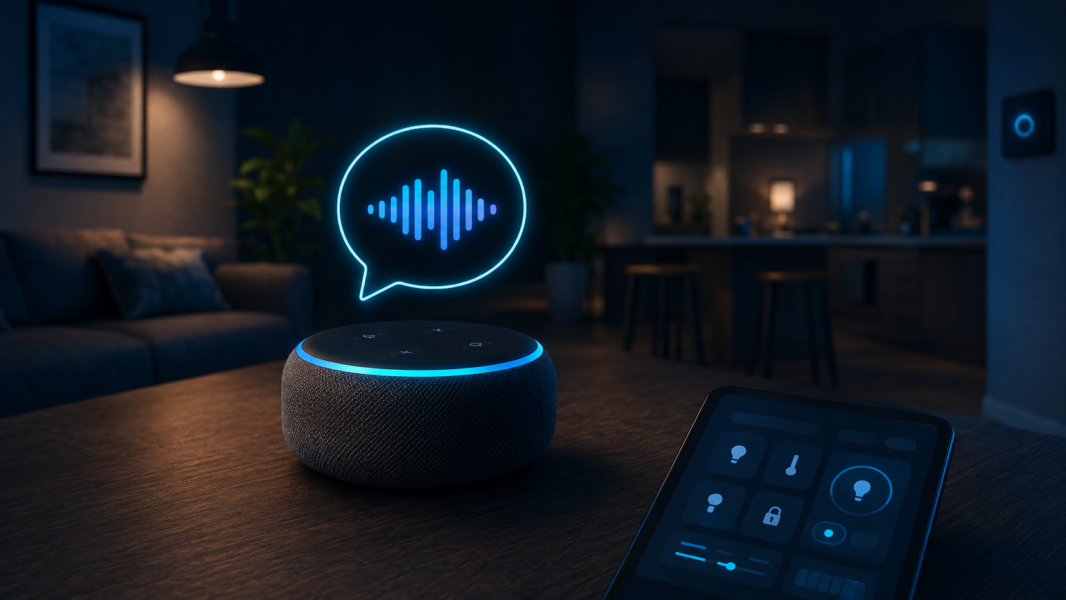

One of the more interesting tricks I’ve been using in Home Assistant is the ability to react to things spoken to Alexa. Not just pressing a button, not just running an Alexa routine, but actually creating a Home Assistant sensor that stores the last command Alexa heard. Once that command is available as a sensor, you can use it like any other Home Assistant entity and build automations around it.
This opens the door to some very useful automations. For example, if someone says “Alexa, good night,” Home Assistant can detect that phrase and run your own bedtime routine. If someone says “Alexa, where is my phone,” you can trigger a notification, make a phone ring, or turn on lights. It basically gives Home Assistant a simple way to listen for selected Alexa voice commands and react to them.
Requirements
Although you’re more than welcome to just read this post for general knowledge, check out my recommendations for what you need to have, in order to be able to fully use the provided information.
The Idea: Turn Alexa’s Last Command Into a Home Assistant Sensor
Alexa devices expose useful information in Home Assistant through their media player entities. One of the attributes we can use is the summary of the last command that was spoken to the last-called Alexa device.
In plain English, we are asking Home Assistant: “Which Alexa device was spoken to last, and what did Alexa hear?” We then take that text and store it in a new template sensor called sensor.alexa_last_summary.
This is not recording audio. It is not storing a live microphone stream. It is simply reading the command summary that the Alexa integration already exposes inside Home Assistant. Still, because this can reveal what people say to Alexa, it is worth using it responsibly and only in your own home.
Step 1: Edit configuration.yaml
In Home Assistant, open your configuration.yaml file. Depending on your setup, you can do this with the File Editor add-on, Studio Code Server, Samba share, or any other method you normally use to edit YAML files.
If you already have a top-level template: section, add only the sensor part under your existing template list. If you do not already have a template: section, you can paste the full block below.
template:
  - sensor:
      - name: Alexa Last Summary
        unique_id: alexa_last_summary_0001
        state: |-
          {% set media = states.media_player | selectattr('attributes.source', 'defined')
          | selectattr('attributes.last_called','defined') | selectattr('attributes.last_called','eq',true)
          | map(attribute='entity_id') | first %}
          {{ state_attr(media,'last_called_summary') | regex_replace(find='alexa ') }}
        attributes:
          area_name: |-
            {{ area_name(states.media_player | selectattr('attributes.source', 'defined') | selectattr('attributes.last_called','defined')
            | selectattr('attributes.last_called','eq',true) | map(attribute='entity_id')|first) }}
        availability: |-
          {{ (states.media_player | selectattr('attributes.source', 'defined') | selectattr('attributes.last_called','defined')
          | selectattr('attributes.last_called','eq',true) | map(attribute='entity_id')|first) is defined }}
After saving the file, go to Developer Tools → YAML and check your configuration. If everything looks good, reload template entities if available, or restart Home Assistant.
What This Sensor Does
The sensor creates a new entity called:
sensor.alexa_last_summary
The state of this sensor will be the last command Alexa heard. For example, if you said:
Alexa, turn on the kitchen light
The sensor may show something like:
turn on the kitchen light
Notice that the template removes the word alexa from the beginning of the command. That keeps the sensor state cleaner and easier to use in automations.
Breaking Down the Code
The template starts by looking through all media_player entities in Home Assistant. It filters them down to media players that have a last_called attribute, and then finds the one where last_called is set to true. In other words, it finds the Alexa device that was spoken to most recently.
Once it finds that device, it reads this attribute:
last_called_summary
That value becomes the state of the sensor. This is the part that gives us the actual spoken command text inside Home Assistant.
The sensor also adds an extra attribute called area_name. This tells us which Home Assistant area the last-used Alexa device belongs to. For example, if the last command was spoken to the Alexa device in the kitchen, the sensor attribute may show Kitchen.
That is useful because you can build automations that behave differently depending on where the command was spoken. “Turn on the fan” from the bedroom can do something different than “turn on the fan” from the living room.
Step 2: Find the New Sensor
After reloading or restarting Home Assistant, go to:
Developer Tools → States
Search for:
sensor.alexa_last_summary
Now say something to one of your Alexa devices and watch the sensor update. The exact result depends on what the Alexa integration exposes, but once you see the text appear in the sensor, you can start using it in automations.
Step 3: Use the Sensor in an Automation
Here is a simple example. This automation watches for the words good night in the Alexa command and then turns off a group of lights.
alias: Alexa Good Night Command
description: "Run a Home Assistant bedtime routine when Alexa hears good night"
triggers:
  - trigger: state
    entity_id:
      - sensor.alexa_last_summary
conditions:
  - condition: template
    value_template: "{{ 'good night' in states('sensor.alexa_last_summary') | lower }}"
actions:
  - action: light.turn_off
    target:
      entity_id:
        - light.living_room
        - light.kitchen
        - light.hallway
  - action: switch.turn_off
    target:
      entity_id:
        - switch.tv
mode: single
You can change good night to any phrase you want to detect, and replace the actions with anything Home Assistant can do.
Useful Automation Ideas
Once Alexa’s last command is available as a Home Assistant sensor, you can get creative. Here are a few ideas:
- Custom bedtime routine: When someone says “good night,” turn off lights, lock doors, arm the alarm, and lower the thermostat.
- Room-aware automations: Use the
area_nameattribute to run different actions depending on which Alexa device heard the command. - Hidden helper commands: Say a phrase like “Alexa, start movie mode” and let Home Assistant dim the lights, close the blinds, and turn on the TV.
- Family reminders: Detect a phrase like “school time” and announce reminders, turn on hallway lights, or show a dashboard notification.
- Device fallback: If Alexa does not control a certain local device directly, use the spoken phrase to trigger a Home Assistant action instead.
Example: React Based on the Room
Because the sensor includes the area_name attribute, you can also make automations that react differently based on the room where the command was spoken.
alias: Alexa Fan Command By Room
description: "Turn on the fan in the room where Alexa heard the command"
triggers:
  - trigger: state
    entity_id:
      - sensor.alexa_last_summary
conditions:
  - condition: template
    value_template: "{{ 'turn on the fan' in states('sensor.alexa_last_summary') | lower }}"
actions:
  - choose:
      - conditions:
          - condition: template
            value_template: "{{ state_attr('sensor.alexa_last_summary', 'area_name') == 'Bedroom' }}"
        sequence:
          - action: fan.turn_on
            target:
              entity_id: fan.bedroom_fan
      - conditions:
          - condition: template
            value_template: "{{ state_attr('sensor.alexa_last_summary', 'area_name') == 'Living Room' }}"
        sequence:
          - action: fan.turn_on
            target:
              entity_id: fan.living_room_fan
mode: single
This makes the command feel much more natural. You can say the same phrase in different rooms and let Home Assistant decide what should happen.
A Small Note About Reliability
This method depends on the Alexa integration updating the last_called and last_called_summary attributes correctly. In my experience it is very useful, but I would treat it as a smart-home convenience feature rather than something for critical security or safety automations.
Also, remember that the sensor state changes only when Home Assistant sees a new last-called Alexa command. If you repeat the exact same phrase twice, some automations may not trigger again unless the sensor state actually changes. For those cases, you may need to build your automation carefully or add additional helper logic.
Wrapping Up
This simple Alexa Last Summary sensor adds a powerful bridge between Alexa voice commands and Home Assistant automations. Instead of being limited to what Alexa routines can do directly, you can let Home Assistant read the last spoken command and decide what should happen next.
It is a small configuration change, but it gives you a lot of flexibility: custom voice triggers, room-aware automations, better routines, and more natural control over your smart home.
Happy automating!